Go live from wherever the story is.
QGo Live is the multitool for radio reporters. The line to your studio, private talkback for several people, your soundbites, a cue picture and an audio editor are all in one app on your phone.
* Until QGo Live is available in the Play Store, you can download the latest version here.
Your station sets up your account. Ask your station admin for an invitation.
One app for the whole live shot
A morning remote, from the interview on the street to the toss back to the studio.
Record the interview
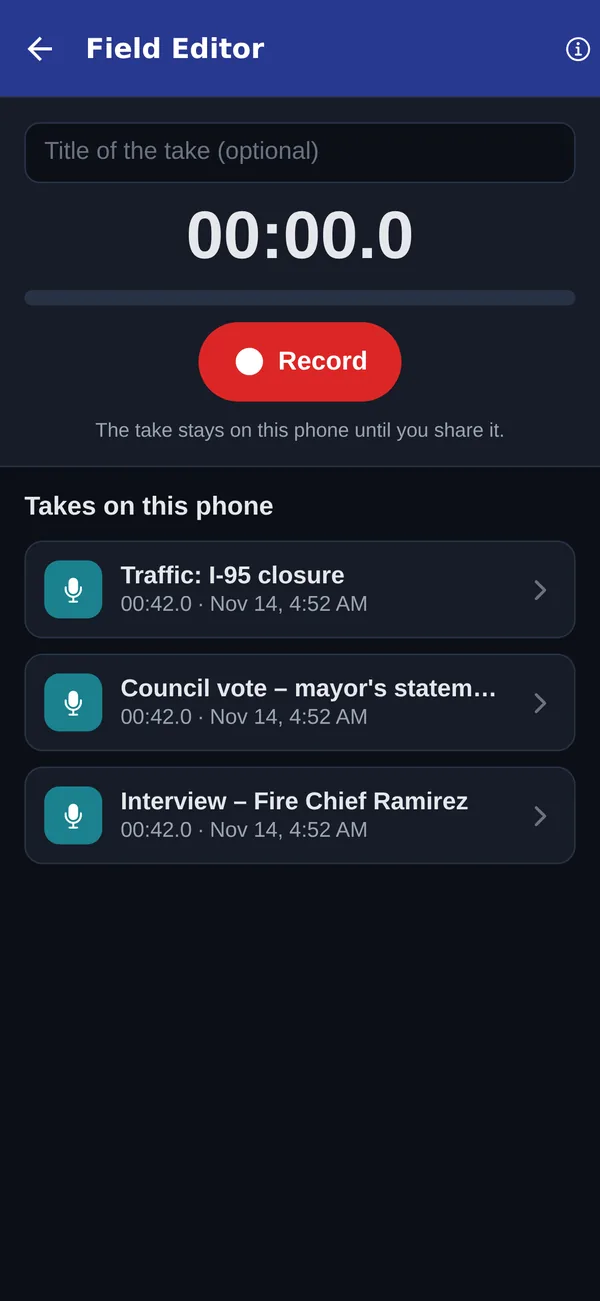
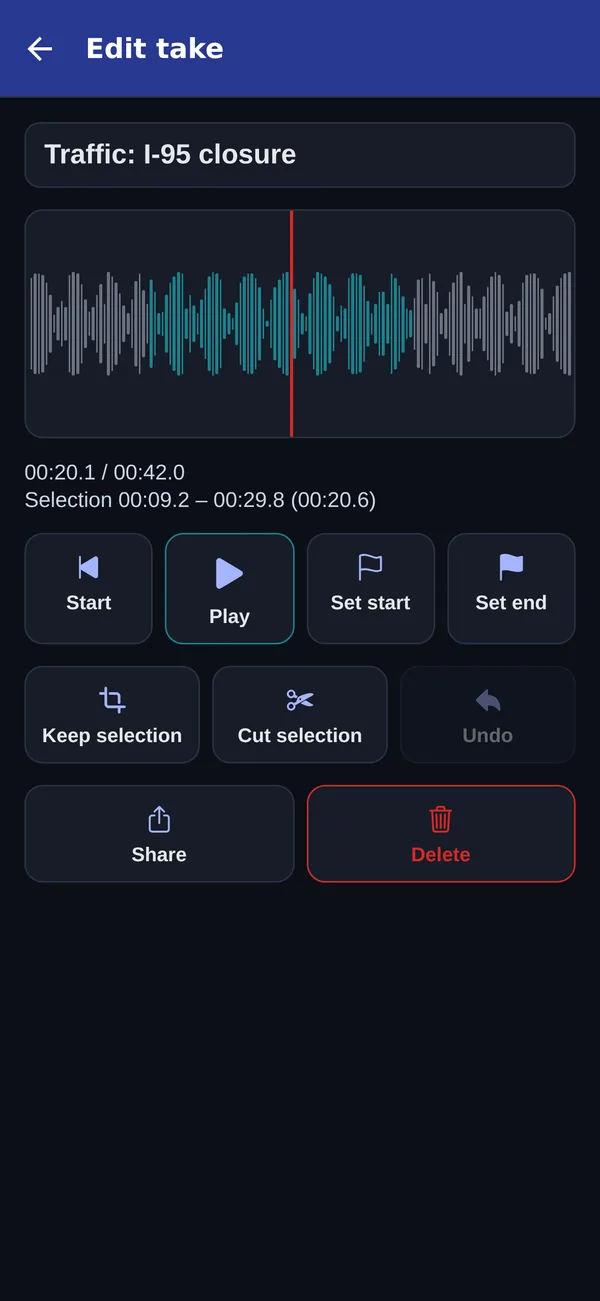
The Field Editor records in studio quality, 48 kHz WAV on iPhone. Set a start and an end, then keep that part or cut it out. The joins are smooth, and Undo is one tap away.
Load your soundbites
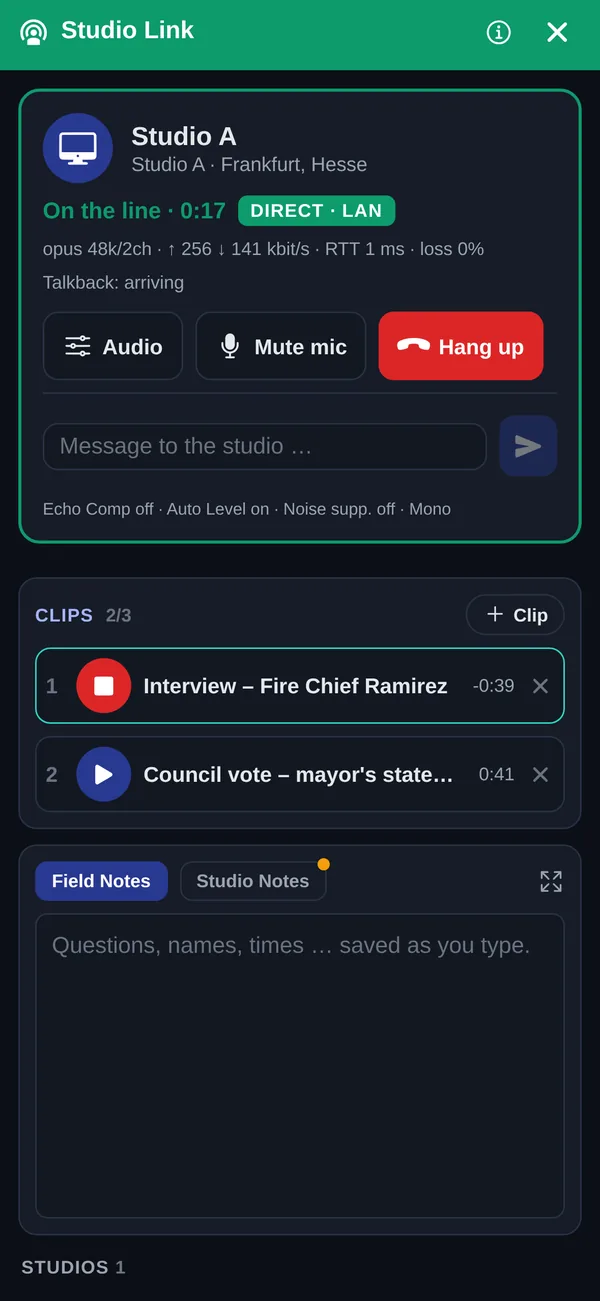
Bring up to three of your own clips into the call. The studio adds its own, and everything lands in one list. The studio plays them on air; you start and stop them from your phone.
Call the studio
One tap calls your studio. Or the studio calls you: on iPhone it rings like a phone call, even when the app is closed.
Talk to your producer
Talkback is a private line to the studio or to a producer. It never goes on air. Several people can join, and the studio can end it at any time.
Take the cue
A small picture both ways, for hand cues like “3, 2, 1”. On a weak network the picture pauses first, so your audio always comes first.
You’re on
Broadcast-quality audio with a short delay. When your phone switches between Wi‑Fi and mobile data, the call reconnects by itself.
Back to the studio
Chat and shared notes keep names and times straight during the shot. The studio can record every voice on its own track, plus the mix.
Record it, cut it, send it
The Field Editor turns your phone into a recorder and an editor for the street.
- Record interviews, sound and voice reports. The screen stays on while you record.
- Tap the waveform, set start and end, and keep or cut the part. Undo goes back one step.
- Share the finished file by mail, AirDrop, Files or your newsroom’s app.
- During a call, send a take to the studio as a clip. It plays there, and you hear it on the line.
- Your takes stay on your phone until you share them or send one as a clip.
The studio side runs in a browser
No receiver box to install. Any studio computer opens the QGo Live studio page and takes calls.
Several reporters at once
Each voice sits slightly left or right, so a conversation between two reporters stays easy to follow.
See every caller’s phone
Battery, Wi‑Fi or 4G/5G, carrier and location are on each call card, next to the connection numbers.
A producer anywhere
A remote producer station mirrors the studio, with its own talkback and a monitor of the call.
Guests and callers
Send an interview guest a link to join from the browser, no app needed. Or call a regular phone number in the US or Canada and bring the caller in.
Recording and transcription
Record each voice and the mix. Switch on a live transcript when you need one.
Your station, your people
Station admins invite reporters and set up studios themselves. Sign-in works with a password, Apple or Microsoft.
Built by people who have done the job
Lee Harris
Radio Hall of Fame, class of 2024
Lee anchored mornings at 1010 WINS in New York for nearly 30 years. For much of that time he was the most-listened-to radio newscaster in the nation.
With his company Harris Media he built the original QGoLive, which reporters still use to go live from breaking news. Lee in the Radio Hall of Fame
Radio.Cloud
Live Studio, award-winning
Radio.Cloud builds cloud production and playout for radio. Its Live Studio connects remotes and studios in the browser, and has won:
- 2023NAB Show Product of the Year, Radio category
- 2023Radio World Best of Show at NAB Show
- 2025RedTech Best in Show at IBC
The new QGo Live is a joint project. It brings together the experience of Lee’s team at Harris Media and of Radio.Cloud’s Live Studio.
Getting started
QGo Live is for stations and their reporters. There is no sign-up in the app.
Get your invitation
Your station admin invites you. Open the link once and set your password.
Sign in
Use your user name or e-mail and your password. Later you can connect Apple or Microsoft and sign in with one tap.
Call your studio
Put headphones on, tap your station and call a studio. Questions? Our support page has the answers.